Import an existing audio or video file and transcribe it with any HyperWhisper mode.
HyperWhisper transcribes live recordings, and also audio files that you already have on disk. You select a file from the menu, a progress popup shows the work, and the result goes to your History. The supported formats and the provider limits are different on each platform. Select your platform below.
Meta Muse Voice Transcribe has a narrower network contract than the general HyperWhisper Cloud limit. The upload must meet all these conditions:
The file is a RIFF/WAVE file with mono, 16-bit integer PCM audio.
The sample rate is 16 kHz or 24 kHz.
The normalized file is not more than 32 MB.
The audio is not longer than 10 minutes.
Windows and Linux accept .wav, .mp3, and .m4a imports for Cloud and direct Meta Muse modes. They convert the input to a 16 kHz mono PCM WAV before the upload. They then check the 32 MB and 10-minute limits on the converted file.macOS sends the first file through the normal HyperWhisper Cloud path. If Meta rejects a non-WAV format, macOS converts it to a 16 kHz mono PCM WAV and tries one more time. A WAV that has an unsupported sample format does not get this retry. Convert that WAV to mono PCM16 at 16 kHz or 24 kHz first.
Meta supports longer real-time sessions upstream, but the pre-recorded Model API path that HyperWhisper uses has a 10-minute limit. Split a longer file or select a different model.
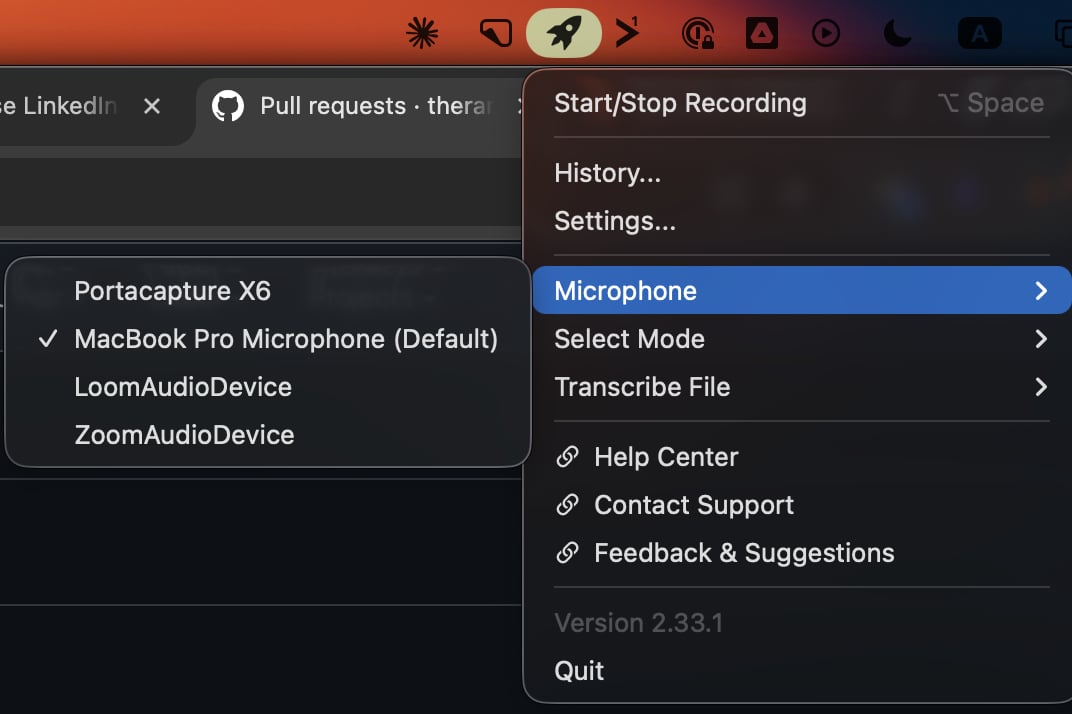
Click the HyperWhisper menu bar icon. Hover over Transcribe File, then select the mode. A standard macOS file picker opens immediately.Each mode in your library shows as a submenu item. You can transcribe with Hyper, Voice to text, Meeting, or a custom mode. Your default mode does not change.
HyperWhisper accepts most common audio containers and the two main video containers. For a video file, HyperWhisper extracts the audio track on your computer before the transcription.
Type
Extensions
Audio
.wav, .mp3, .m4a, .aiff, .ogg, .flac
Video (audio extracted)
.mp4, .mov, .m4v
HyperWhisper does not support WebM. If you select a .webm file, HyperWhisper tells you to convert the file to MP3, M4A, or WAV first.HyperWhisper reads the format from the content of the file, not only from its extension. For example, a WAV file named .mp3, or a file with no extension, still opens as a WAV file.
Each cloud provider supports a different set of audio formats. If you select a format that the provider does not accept, HyperWhisper stops before the upload. It shows the formats that the provider supports. You do not wait for a long upload and then get an unclear API error.
The Microsoft MAI-Transcribe engine on HyperWhisper Cloud accepts WAV, MP3, and FLAC only. This applies to both of its models, MAI-Transcribe 2 and MAI-Transcribe 1.5. macOS keeps your recordings as M4A, and it converts an imported video to M4A. The server thus refuses the upload.macOS repairs this for you. On the refusal, it converts the audio to a 16 kHz mono WAV and sends the audio one more time. It makes this second attempt one time only, and it deletes the temporary WAV file after the attempt. The conversion applies to dictation and to file transcription.If the conversion fails, or the WAV file is larger than the 300 MB server limit, HyperWhisper shows the original error. Select a different Cloud engine for that mode.
Local models have no file size limit. Each cloud provider has a different limit. HyperWhisper applies the limit before the upload:
Provider
Max file size
LibWhisper / Parakeet (local)
No limit
HyperWhisper Cloud
2 GB
Deepgram
2 GB
AssemblyAI
5 GB
ElevenLabs
3 GB
Google Gemini
2 GB
Mistral
100 MB
OpenAI
25 MB
Groq
25 MB
Soniox
1 GB
Grok
500 MB
Microsoft Azure Speech
300 MB
Google Gemini 3.5 Transcribe
14 MB
Meta Muse Voice Transcribe
32 MB
If the file is too large for the provider of the selected mode, HyperWhisper shows an error. The error gives the file size, the limit of the provider, and the name of the provider. To transcribe larger files, change the mode to a different provider (for example, HyperWhisper Cloud or a local model).
The 2 GB limit for HyperWhisper Cloud is the general limit that the app applies before the upload. Five Cloud engines have a smaller limit on the server:
Cloud engine
Server limit
OpenAI Whisper
25 MB
Google Gemini
14 MB
Google Gemini 3.5 Transcribe
14 MB
Microsoft MAI-Transcribe (both models)
300 MB
Meta Muse Voice Transcribe
32 MB and 10 minutes
A file that is larger than the server limit gets a “file too large” error from the server. The macOS app does not stop it first. For a large file, select a different Cloud engine, for example ElevenLabs Scribe v2 or Deepgram Nova 3.
A floating progress popup appears when you select the file. The popup shows three stages:
1
Preparing (0–15%)
HyperWhisper makes sure that the file size and the format are correct. It copies the file into your recordings folder. For a video file, it extracts the audio track. If this option is on and the file is 30 seconds or longer, it also runs VAD silence trimming.
2
Transcribing (15–85%)
HyperWhisper sends the audio to the local model or the cloud provider of your mode. The progress bar moves while the provider does the work.
3
Finishing (85–100%)
HyperWhisper applies the post-processing rules of the mode (formatting, vocabulary, custom prompt). It saves the transcript. The main window then shows History, where you can copy or edit the result.
You can click Cancel on the popup at any time. If you cancel, HyperWhisper deletes the copied file and saves no transcript.
If Voice Activity Detection is on in settings, HyperWhisper trims imported files of 30 seconds or longer. It removes the silence at the start and at the end before it sends the file to the provider. HyperWhisper transcribes the trimmed file and keeps the original audio. You can change between the two versions in the History view.
Right-click the HyperWhisper tray icon. Hover over Transcribe File, then select the mode from the submenu. The procedure is the same as macOS. A standard Windows file dialog opens immediately. The mode that you select in the submenu applies only to this transcription. Your currently selected mode does not change.Only one file dialog can be open at a time. While the dialog is open, or while a recording or a transcription runs, the Transcribe File items in the tray menu are not available. If a dictation starts while the dialog is open, HyperWhisper does not transcribe the file that you select. It shows a notification that tells you to try the file again when the current work finishes.
The Windows app does not support video files (.mp4, .mov) yet. To transcribe a video, you must extract the audio track first with a tool such as ffmpeg.
If the file is empty (0 bytes), HyperWhisper stops before any mode runs and tells you that the file has no audio. When HyperWhisper converts a file for the local Whisper model, a damaged file or a file that is not audio gets a plain error message. The message tells you that HyperWhisper cannot read the file.
The file size limit comes from the provider of the selected mode. The limits are the same as macOS:
Provider
Max file size
Whisper / Parakeet (local)
No limit
HyperWhisper Cloud
2 GB
Deepgram
2 GB
AssemblyAI
5 GB
ElevenLabs
3 GB
Google Gemini
2 GB
Mistral
100 MB
OpenAI
25 MB
Groq
25 MB
Soniox
1 GB
Grok
500 MB
Microsoft Azure Speech
300 MB
Google Gemini 3.5 Transcribe
14 MB
Meta Muse Voice Transcribe
32 MB after conversion
If the file is larger than the limit, HyperWhisper shows a toast notification before the upload. The notification gives the maximum size for that provider.
The 2 GB limit for HyperWhisper Cloud is the general limit. Windows uses the selected Cloud engine’s smaller limit when the catalog provides one:
Cloud engine
Server limit
OpenAI Whisper
25 MB
Google Gemini
14 MB
Google Gemini 3.5 Transcribe
14 MB
Microsoft MAI-Transcribe (both models)
300 MB
Meta Muse Voice Transcribe
32 MB and 10 minutes, after conversion
Windows checks the selected Cloud engine before the upload. For a large file, select a different Cloud engine, for example ElevenLabs Scribe v2 or Deepgram Nova 3.
A progress window appears. It shows the file name and a cancel button:
1
Preparing (0–15%)
HyperWhisper makes sure that the file is correct. If your mode uses the local Whisper model, HyperWhisper converts the file to a 16 kHz mono WAV in your temp folder. Whisper accepts only this format. HyperWhisper does the resampling and the stereo-to-mono conversion automatically. Most cloud providers receive the original file. A Meta Muse mode first converts WAV, MP3, or M4A input to a 16 kHz mono PCM WAV.
2
Transcribing (15–85%)
HyperWhisper sends the audio to Whisper, to Parakeet, or to the cloud provider of your mode. If your computer supports it, Whisper uses Vulkan or CUDA GPU acceleration.
3
Finishing (85–100%)
HyperWhisper applies the post-processing rules of the mode. It saves the transcript to History. The main window then shows the result.
Click Cancel at any time to stop the transcription. The progress window closes and HyperWhisper saves no transcript.
The local Whisper engine accepts only 16 kHz mono WAV input. Some files have a different sample rate or channel count. If you import an MP3 file, an M4A file, or such a WAV file, HyperWhisper converts it with NAudio:
HyperWhisper reads the source file with AudioFileReader. This reader supports MP3 and M4A with Windows Media Foundation.
If the audio is stereo, HyperWhisper mixes the channels to mono.
HyperWhisper resamples the audio to 16 kHz with WdlResamplingSampleProvider.
HyperWhisper writes a temporary 16 kHz mono WAV file for that transcription only.
HyperWhisper keeps the original file that you imported in your History. It converts only the temporary WAV file for the model.
The local Whisper model processes a long file in chunks of about 5 minutes. This keeps the memory use low for a long file. If your mode detects the language automatically, the first chunk that contains speech sets the language. HyperWhisper then uses that language for the remaining chunks of the file.
On both platforms, the result appears in History with the original audio. In History, you can do these tasks:
Copy the text or the post-processed version to your clipboard again
Run a different mode on the same file
Edit the transcript directly
Delete the entry and the saved audio
If a transcription fails before it is complete, HyperWhisper still creates the entry in History and shows the error. You can try again without a new import of the file.