
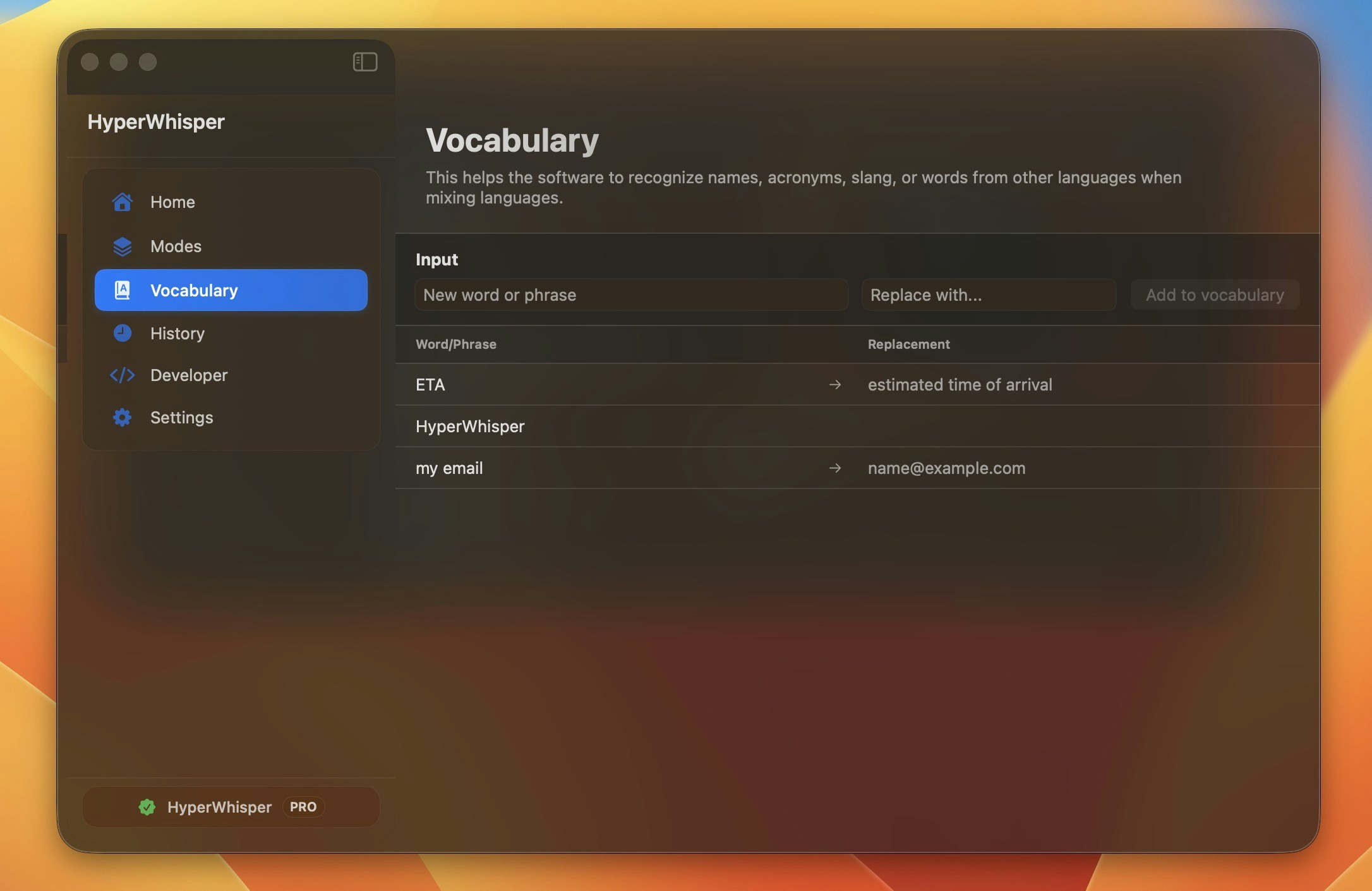
Add New Entries
- macOS
- Windows
- Open the Vocabulary tab in the sidebar.
- Type the word or the phrase that you expect to speak.
- To add it as a recognition hint, press
Return. To open a replacement field below the input, press⌘ Return. - If you opened the replacement field, type the replacement text. Then press
⌘ Returnagain to confirm.
Esc.Before any entry reaches a provider or an AI post-processing prompt, HyperWhisper strips
< and > characters and caps it at 80 characters. This applies to every entry, not only the provider-specific limits described below.How HyperWhisper Uses Vocabulary
Vocabulary entries work in three different ways. The behavior depends on the entry type and on the transcription provider.Recognition hints (no replacement)
The app sends entries without a replacement as keyword hints to the cloud providers that support them. These hints move the model toward the correct spelling. They do not rewrite any other text in the output.- Deepgram — the app sends the terms as keyword boosting parameters. There is no limit on the number of terms. The app cuts each term to 80 characters, but it does not drop the term. If your list is more than 100 entries, the app shows a warning banner, because the Deepgram documentation recommends 100 terms or fewer. The app still sends the entries after the first 100.
- OpenAI Whisper, Groq Whisper, Soniox — the app sends the terms as prompt vocabulary terms. The exception is the OpenAI
gpt-transcribemodel: the app sends the terms as akeywordslist instead, and the prompt then carries only your custom instructions. - HyperWhisper Cloud — the app sends the terms as prompt vocabulary terms. The server keeps the first 100 terms and drops the other terms without a message. The same 100-entry warning banner applies here. If the selected accuracy tier routes to Google Gemini 3.5 Transcribe, the server sends the terms in the
custom_vocabularyfield, up to 100 terms, each cut to 80 characters. Azure MAI-Transcribe does support hints on this route: the server sends up to 100 terms, each cut to 50 characters, as a phrase list. - Meta Muse Voice Transcribe — Cloud and direct Meta requests send the terms in Meta’s
keywordsfield. HyperWhisper keeps the first 100 non-empty terms and cuts each term to 80 characters before the request. These are HyperWhisper limits. Meta’s API reference does not publish a phrase-count limit. Muse also supports context bias upstream, but HyperWhisper does not expose a separate context-bias control. - Gemini — the app sends the terms as free text in a natural-language prompt instruction. This is the same mechanism as the prompt vocabulary of OpenAI and HyperWhisper Cloud.
- Gemini 3.5 Transcribe — the app sends the terms in the
custom_vocabularyfield of the request. This is a real field of the API, and not text in a prompt. The limit is 100 terms, and the app cuts each term to 80 characters. It removes a duplicate term, and it does not compare the capital letters. The same limits apply with your own Google key and through HyperWhisper Cloud. This engine accepts the terms also when the language of the mode is Auto. - ElevenLabs — the app sends the terms as repeated
keytermsmultipart form fields. Scribe v2 is the only ElevenLabs model. The limit is 100 terms, and the app drops terms longer than 50 characters. If you reach ElevenLabs through HyperWhisper Cloud, the server applies the same two limits and also drops terms of more than 5 words. With your own ElevenLabs key, the word-count limit does not apply. - AssemblyAI — the app sends the terms as key-term context, up to 200 terms for most models. The limit is 1000 terms for the Universal-3.5 Pro model. The app drops phrases longer than 6 words.
- AssemblyAI Dictation — the Dictation model has its own limits. The app sends the terms in the
keyterms_promptfield. It keeps the first 100 terms, it cuts each term to 80 characters, and it stops when the terms together reach 8000 characters. The same limits apply with your own AssemblyAI key and through HyperWhisper Cloud. Custom vocabulary adds no credits on this model. - Grok STT — the app sends the terms as repeated
keytermfields. The limit is 100 terms, and the app drops terms longer than 50 characters. The same limits apply with your own SpaceXAI key, through HyperWhisper Cloud, and in streaming mode. - Mistral — the app sends the terms as a
context_biaslist, up to 100 terms. The same limit applies with your own Mistral key and through HyperWhisper Cloud. Voxtral refuses a term that contains a space, and it then refuses the complete request. Thus the app joins the words of a multi-word term with an underscore first:Claude Codegoes out asClaude_Code. This is the format that Mistral gives for a multi-word bias phrase. An underscore that you type stays as it is. Through HyperWhisper Cloud, the server also drops terms of more than 80 characters.
If the language of the mode is Auto, Deepgram vocabulary boosting behavior depends on the model. Nova-3 ignores keyword boosting parameters when language auto-detection is on — boosting applies only when the mode has an explicit language. Nova-2, Nova-1, and the Enhanced models keep sending keyword boosting even under Auto.
Custom vocabulary applies to file and batch transcription. Streaming mode does not support it for every provider — for example, OpenAI and ElevenLabs Scribe v2 drop vocabulary hints when you use them as a streaming provider, even though they support it for regular transcription.
initial_prompt hint. Apple Speech Analyzer sends them as native contextualStrings biasing.
Text replacements
The app applies entries with a replacement by regex. This step runs after transcription, and after AI post-processing. The match ignores letter case and holds to word boundaries. Therefore, “eta” matches only the separate abbreviation, and not a word such as “metadata”. The app also removes the spaces at the start and at the end of the word and the replacement. On-device engines use the same word-boundary pass, one time, on macOS, Windows, and Linux. An on-device engine applies no replacement inside a longer word. The Original text in History keeps the text of the on-device engine, before the replacements.AI post-processing context
The app puts entries without a replacement into the user-message context of each AI post-processing request. This context helps the model to understand your terms when it cleans up text for the Meeting, Custom, and other presets. Entries with a replacement stay out of this context. Their regex substitution runs later, on the output of the AI, so the app does not need to send them again.Manage the List
- Edit — put the pointer on a row to show the pencil icon. Click the icon to load the entry back into the input field.
- Delete — put the pointer on a row to show the trash icon.
- The app sorts the entries alphabetically. Each row shows the original phrase and the replacement text. An arrow shows between them when a replacement exists.
Backup and Import
Your vocabulary list goes with every HyperWhisper backup file. You can share the file between your devices, and between macOS and Windows.Export your vocabulary
- macOS
- Windows
1
Open Backup settings
Go to Settings → Backup.
2
Choose what to include
Toggle on Vocabulary. You can include or exclude Settings, Modes, and API keys one by one. To export the vocabulary alone, toggle off all the other sections.
3
Export
Click Export. Then choose a location for the file. The app saves a
.hwbackup.json file in the universal cross-platform format.Import vocabulary
- macOS
- Windows
1
Open Backup settings
Go to Settings → Backup.
2
Pick a file
Click Import. Then select a
.hwbackup.json file. HyperWhisper reads the file and shows the contents before it changes anything.3
Review the merge preview
The import sheet shows a summary. It gives the number of words that are new, and the app adds these words. It also gives the number of words that already exist in your list. If there are conflicts, select Skip to keep the existing entries, or Replace to use the values from the file.
4
Confirm
Click Import. The app adds the new words. The app never deletes your existing list.
Merge behavior
A vocabulary import only adds words. It never deletes an existing word.
The match ignores letter case and removes the spaces around the word. Therefore,
"kubernetes" and "Kubernetes" are the same word.
Cross-platform sharing
You can import a.hwbackup.json file from macOS into Windows. You can also import a file from Windows into macOS. The file uses a shared schema (schemaVersion: 2), and both apps merge the vocabulary by the word text. A UUID from the other platform does not make a duplicate.
A vocabulary-only file contains only the
vocabulary key. This format shares a word list without your settings and your modes.Best Practices
- Add proper nouns, company names, and the special terms that you say frequently. Add them even when the model usually recognizes them. Consistent spelling is important for emails and meeting notes.
- Use a replacement to expand an abbreviation into a full phrase, for example
ETA→estimated arrival time. Use a replacement also to correct letter case, for examplekubernetes→Kubernetes. - Before you change devices or install the app again, export your vocabulary. Then import it into the new installation.
- On Deepgram, keep your list to 100 entries or fewer. The app does not send terms after this limit for boosting.